3 Best Laptops for Gaming and Video Editing Under 1000 in 2026
As an Amazon Associate, this website earns from qualifying purchases.
The short answer
Assess the HP first if 16GB fitted RAM suits your editing work. Both Acer units supply 8GB. All three GPUs fall below Adobe's recommended graphics-memory amount, and none has a verified color-work panel here.
Compare this unit when its listed CPU and GPU fit your games, while treating editing memory as a separate requirement.
Core i5-13420H and RTX 4050 Laptop GPU
15.6-inch Full HD IPS screen, 165Hz
8GB DDR5 RAM; 512GB SSD
Keep in mind: The supplied 8GB RAM is below Adobe's recommended amount for HD work. Its panel refresh rate does not establish color accuracy or editing speed.
Assess this exact configuration when its documented parts fit your games and the editing app's requirements.
Core i5-13420H and RTX 4050 Laptop GPU
15.6-inch Full HD IPS screen, 144Hz
8GB DDR5 RAM; 512GB SSD
Keep in mind: It also supplies 8GB RAM. There is no matched playback or export result here, and its screen is not established as suitable for critical color work.
The best laptop for gaming and video editing has to fit your actual editing app. A GPU name alone does not settle that choice. Adobe sets a basic level for Premiere. Its RAM and GPU advice for a better setup is a higher bar. The three laptops below need different caveats even though each lists an RTX 4050 Laptop GPU.
We would assess the HP first for its 16GB of fitted RAM. Both Acer units start at 8GB. None supplies the 8GB of graphics memory Adobe recommends. This is a comparison of documented parts, with no hands-on export, playback or game test.
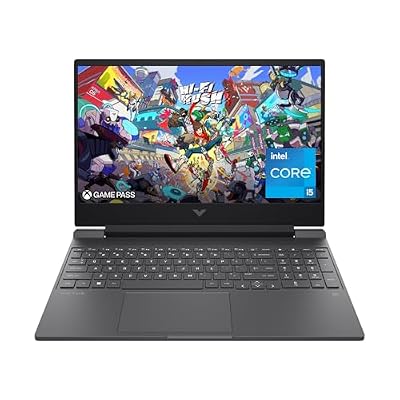
#1. HP Victus 15-fa1040nr: more editing memory already fitted
HP's model sheet lists a Core i5-12500H and RTX 4050 Laptop GPU. Its 16GB DDR4-3200 RAM uses two 8GB sticks. Both slots are full. The SSD is listed at 512GB. Keep those fitted parts distinct from a future upgrade plan.
The panel is Full HD at 144Hz. HP states 250 nits of brightness and a 45% NTSC color gamut. Those facts make the screen a clear concern for color work. A high refresh rate cannot supply a wider color range. Read the exact Victus review before choosing it for that task.
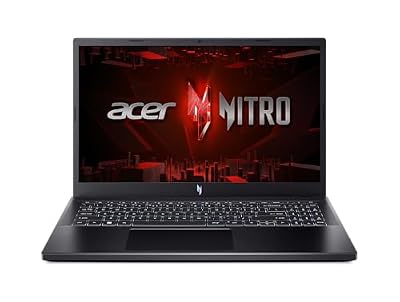
#2. Acer Nitro V ANV15-52-586Z: assess the base memory first
Compare this unit when its listed CPU and GPU fit your games, while treating editing memory as a separate requirement.
Keep in mind: The supplied 8GB RAM is below Adobe's recommended amount for HD work. Its panel refresh rate does not establish color accuracy or editing speed.
This Acer lists a Core i5-13420H and RTX 4050 Laptop graphics, alongside 8GB DDR5 and a 512GB SSD. Its Full HD IPS panel is specified at 165Hz. That refresh figure describes the display, rather than how smoothly your project will play.
If your chosen editing workflow needs more RAM, resolve the exact model's upgrade route before ordering. A stated supported maximum is not the amount included. Do not use a future memory change to describe the stock laptop as meeting a higher requirement today.
#3. Acer Nitro V ANV15-51-51H9: a distinct 144Hz setup
Assess this exact configuration when its documented parts fit your games and the editing app's requirements.
Keep in mind: It also supplies 8GB RAM. There is no matched playback or export result here, and its screen is not established as suitable for critical color work.
The older Nitro V lists the same CPU and GPU names as the other Acer, with 8GB DDR5 and a 512GB SSD. Its screen record is Full HD IPS at 144Hz. Do not blend its service or display facts with those of the ANV15-52-586Z.
Our ANV15-51-51H9 review keeps that identity clear. Sharing a GPU name does not prove equal sustained performance in an export. Cooling and power settings need exact-laptop evidence. We have no such matched result to turn into a speed ranking.
Best laptop for gaming and video editing: read the current app requirements
Adobe's current Premiere requirements call for Windows 11 version 24H2 on a Windows PC. They set CPU and GPU rules too. An old product listing that says Windows 11 does not prove its installed version is current enough.
The published minimum RAM is 8GB. Adobe recommends 16GB for HD media and 32GB or more for 4K and higher. That distinction matters here. Both Acer units match the minimum amount, while the HP reaches the HD recommendation as fitted. None arrives with the higher recommended RAM amount for 4K work.
Adobe lists 4GB of graphics memory as a minimum and recommends 8GB. NVIDIA lists the RTX 4050 Laptop GPU with 6GB. That amount sits between those levels. It does not make any of these units ready for every 4K project.
Editing check
What the records establish
What still needs checking
System RAM
HP 16GB; both Acer units 8GB
Your media format and app version's full requirement
Graphics memory
RTX 4050 Laptop is specified with 6GB
Whether that capacity fits the actual effects and project
Storage
Each selected unit lists a 512GB SSD
Free space after setup, media and cache needs
Built-in screen
Full HD, with different stated refresh rates
Color accuracy, gamut coverage and suitable calibration
Playback and export
No matching tests retained here
Exact project, codec, effect chain and power setting
Scroll for more →
These are Premiere requirements, not a universal rule for every editor. If you use another app, read its own current requirements. A simple editor and a complex effects workload can ask different things of the same laptop. Keep the software version in the comparison.
Resolution is only one part of a project
A project label such as HD or 4K does not describe the whole load. The format of the source files and the effects you apply also matter. Seek a test that states those details rather than a single export time without a method.
If you plan to use proxies or lower playback quality, check how that process works in your app. Treat it as a workflow to verify with representative media. It is not proof that every difficult source format will become easy on any chosen laptop.
An export test from a different model needs the same care as a game test. Match the CPU and fitted RAM. Check the GPU and app version too. A faster result for a more powerful model in the same family does not prove these units share that speed.
Graphics encoding and game performance are separate checks
NVIDIA's video encode and decode support matrix lists the RTX 4050 Laptop GPU with an eighth-generation NVENC encoder. It lists AV1 encoding support too. That is a hardware feature. Your app must support that export path for you to use it.
Decode support is a separate question from encoding. Read the right matrix and the app's guide for your source format. A hardware encoder does not remove every other limit. Effects and source decoding can still call on other parts of the system.
The same separation applies to gaming. A useful editing feature does not establish a game frame rate. Check the actual titles and settings independently. A 165Hz panel can display more refreshes than a 144Hz panel, but neither number proves the GPU supplies that many new game frames.
Keep the display out of an unsupported color claim
For the HP, the exact model sheet states a modest color gamut. The Acer records do not prove their screens fit color work. We would not call any built-in panel here a tested choice for critical color decisions.
An external screen may be part of your plan, but verify the whole connection before relying on it. Check the laptop's output specification and the monitor's input, with the cable included. A port shape alone does not confirm every resolution, refresh rate or charging feature.
Also decide where the final work will be viewed. A casual family clip and a job with strict delivery requirements need different confidence in color. If your work has a firm display standard, use that standard as a buying gate rather than excuse a mismatch with a gaming label.
Storage, cache and a safe project copy
The listed 512GB SSD is a capacity figure, not free project space after setup. Windows and installed apps use part of it. Media files and application caches then need their own room. Check the remaining space before taking on a large project.
If you will edit from an external drive, verify its connection and the actual workload. Do not infer transfer performance from a USB-C connector. The drive and cable also need to support the intended task. An adapter can add a further limit.
Plan a separate copy of project work that you cannot replace. Extra capacity and a backup serve different purposes. A second partition on the same drive does not resolve the loss of that physical drive. Use your chosen backup method consistently and verify that you can restore a file.
Work and play on the same machine
Think about the apps that stay open while you work. If you switch from a game to editing with a browser still running, include that combined use in the memory plan. A requirement for one app does not promise room for every other task at once.
For a long task, look for a test with the adapter connected and the power mode stated. Then assess unplugged work on its own. We have no matching battery or fan-noise result for these units. A battery's size cannot supply either result.
The practical choice may depend on which task is firm. If paid editing work requires a larger memory capacity or a documented display standard, let that requirement lead. A laptop can be a candidate for your games while still missing an editing need.
Factors to consider
Name the editing app and version, then read its current requirements.
List the source formats and the type of project you expect to edit.
Compare fitted RAM with the recommendation for that workflow.
Check graphics memory and supported hardware processing paths.
Plan actual free storage and separate copies of important work.
Resolve display needs before relying on the built-in panel.
Assess your games with their own requirements and matching tests.
FAQ
Is a gaming laptop automatically good for editing?
No. The app's requirements and your media decide the fit. Check RAM and graphics memory alongside the display. A gaming GPU alone does not establish smooth playback, a quick export or accurate color.
Is 16GB RAM enough for Premiere?
Adobe currently recommends 16GB for HD media and 32GB or more for 4K and higher. Match that guidance to the current release and your project. The HP supplies 16GB; the Acer models supply 8GB each.
Does AV1 encoding support prove that my export will use it?
No. The hardware capability needs a supported app and output path. Check the app's current export options for the selected format. The encoder matrix is not a test of your project or its effects.
Best laptop for gaming and video editing: how we picked and verdict
We checked exact catalog identities and new US offers below this site's ceiling. HP's 15-fa1040nr sheet identifies its fitted parts and panel. The two Acer records name separate configurations. Adobe and NVIDIA supply the current requirements and GPU capability cited above. None is a hands-on test by this site.
For the best laptop for gaming and video editing, assess the HP first if its fitted 16GB RAM meets your actual workflow. Keep its panel limits visible. Both Acer units require more care around their base 8GB RAM. All three fall below Adobe's recommended graphics-memory amount. The main buying guide compares the wider purchase, and contact and corrections is the route for a factual mismatch.