3 Best Gaming Laptops for Streaming Under 1000 in 2026
As an Amazon Associate, this website earns from qualifying purchases.
The short answer
Check the HP first when its fitted 16GB RAM suits the whole task. Both Acer units supply 8GB. A supported hardware encoder does not prove smooth simultaneous gaming and streaming; no matching combined test is established here.
The best gaming laptop for streaming needs to handle the game and the broadcast together. A game test alone does not prove that combined task. A hardware encoder helps with one part of the work, but it does not remove every other load. Start with the game, your capture app and the destination you intend to use.
We would assess the HP first when 16GB of fitted RAM is useful to that setup. The two Acer options supply 8GB. All three list an RTX 4050 Laptop GPU. They are candidates to check, with no hands-on combined-stream test or promised output setting from this site.
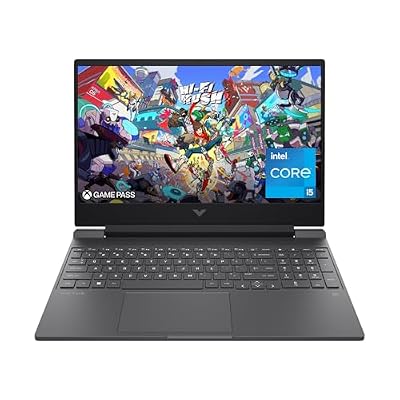
HP lists a Core i5-12500H and RTX 4050 Laptop GPU, with 16GB DDR4-3200 RAM. That memory uses two 8GB sticks. The SSD is listed at 512GB. Compare those fitted parts with the whole task rather than the game alone.
HP's 15-fa1040nr sheet also specifies a Full HD IPS panel at 144Hz. It states 250-nit brightness and a 45% NTSC gamut. The Victus review keeps those limits visible. More supplied RAM is not a measured claim about stream quality or the screen.
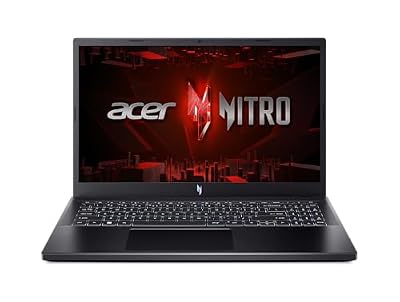
#2. Acer Nitro V ANV15-52-586Z: 165Hz, with less RAM fitted
This Acer names a Core i5-13420H and RTX 4050 Laptop graphics. It lists 8GB DDR5 and a 512GB SSD. Its 15.6-inch Full HD IPS screen is specified at 165Hz. Keep that display ceiling separate from a measured game frame rate.
If the game or your wider setup needs more memory, resolve that gap before ordering. A supported upgrade is not RAM already included. Check the exact service route and required parts, then consider the complete purchase rather than a future best-case setup.
#3. Acer Nitro V ANV15-51-51H9: separate 144Hz option
This Nitro V lists the same CPU and GPU names as the newer Acer, with 8GB DDR5 and a 512GB SSD. Its screen is specified at Full HD 144Hz. The two records remain separate even though several chip names match.
Our ANV15-51-51H9 review explains the exact model and its evidence gaps. A shared GPU name does not prove equal power settings or cooling. We do not use a result from another Nitro V to claim a fixed streaming setup will work on this one.
Best gaming laptop for streaming: define the whole broadcast
Write down the game you want to show and the settings you hope to use. Then name the capture app and the destination. Include any camera or other source that belongs in the actual scene. This turns a vague streaming claim into a task you can check.
Decide whether the laptop will play the game itself or capture another device. Those are different workloads. A laptop encoding an external feed is not doing the same job as a machine rendering the game while it broadcasts. Keep that distinction in any test you use.
Also decide whether you need a local recording at the same time. That can add another output path with its own settings and storage needs. Do not assume a result for streaming alone covers every combined recording setup.
Part of the task
Record before buying
Evidence that would help
Local game
Title, version, resolution and settings
Exact-laptop game test with the method stated
Capture app
Version and sources in the scene
A test of the actual combined setup
Broadcast output
Destination's current supported settings
Official destination guidance and a private test
Local recording
Whether it runs alongside the stream
Recording settings, available space and a verified result
Camera and audio
Devices and required connections
Compatibility record plus an actual sample
Network
The connection you will use in that room
A test of that path during normal use
Scroll for more →
If a review covers only one of those rows, it does not settle the whole purchase. Use it for the narrower fact it proves. Leave the rest unknown until a suitable record or test resolves it.
Basic OBS support is not a streaming benchmark
OBS's system-requirements page warns that a compatible system is not guaranteed to stream or record successfully. The chosen encoder and output settings matter, as does scene complexity. A supported OS and GPU are starting conditions rather than a complete result.
This is why we do not say the selected laptops are proven for a particular broadcast resolution or frame rate. We have no matching test with the game and scene stated. Their listed parts give you candidates to assess, with limits that belong beside the purchase link.
Read the current version's support page when setting up your capture app. A dated guide may still explain a concept while missing a later feature or changed support rule. Match the app and driver versions to the task you actually intend to run.
The distinction is useful even if a store says a laptop is ideal for creators. That broad label does not name the game or the capture workload. Ask for the method behind any performance claim before relying on it.
Encoding, rendering and the game are different work
OBS's hardware-encoding guide explains that dedicated encoding hardware can take encoding work away from the CPU. That is a useful reason to check the GPU's supported encoder. It does not mean the rest of the broadcast has no cost.
OBS still has to compose and render its scene. Its performance guide explains that this uses GPU resources. A game that leaves too little room for that work can therefore present a problem even when a dedicated encoder is available.
Keep the two ideas together. Encoder support is a hardware feature to verify. Whole-stream behavior is a complete workload to test. Neither can replace the other, and a short chip specification cannot prove the result for your actual scene.
If you read a performance result, check whether capture was active during the game test. A frame count taken with no broadcast does not show what changes when the scene and output are added. The reviewer needs to state both tasks for the result to answer this question.
What the RTX 4050 encoder record establishes
NVIDIA's encode and decode support matrix lists the RTX 4050 Laptop GPU with an eighth-generation NVENC encoder. It lists AV1 encoding support too. All three units name that GPU. These are hardware features, not a stream-quality score.
AV1 encoding also needs support from your software and intended destination. Check that current path before treating the feature as a reason to buy. A supported codec at one end does not establish that every part of your broadcast workflow accepts it.
Decode support is listed separately from encode support. If the scene uses media files, check the relevant source format as well as the output format. Do not use an encoding column to prove every input path is supported in the same way.
The exact laptop's power behavior still matters to a sustained combined task. A common GPU name cannot establish identical cooling or performance across the HP and Acer units. We have no matched test that makes one the encoder-performance winner here.
RAM for the game plus the capture app
The HP arrives with 16GB system RAM, while each Acer arrives with 8GB. That is the clearest fitted-capacity difference in this pool. It makes the HP worth checking first when the complete task calls for more memory.
It is not proof that 16GB covers every game and scene. Read the current game requirement and include the other apps you actually run. A browser for chat or another local tool belongs in that same task. A memory figure is not a promise of unlimited room.
For example, Epic's current Fortnite guidance recommends 16GB or more for the game. The HP reaches that amount as supplied; both Acer units start below it. That is a game-memory comparison, not a result for Fortnite plus a live broadcast.
Do not add the printed minimums of several apps and call the sum a benchmark. Requirements are not a measurement of the actual combined load. Use them to identify clear gaps, then seek a representative test for the full setup.
Upgrade plans must stay conditional
If a needed memory change is part of your plan, check the exact model's supported route. The HP's two RAM slots are occupied by the supplied modules. A slot count alone therefore does not describe an empty place to add another stick.
For either Acer, retain its full model code in the service check. Do not use the newer Nitro V's record as proof for the older one. A page that discusses the whole family may list choices without identifying the exact selected unit's layout.
Include the parts and fitting work in the decision. We have not verified a named memory kit for these units. Until that check is complete, the base laptop's supplied RAM is the amount you can rely on in this comparison.
An unresolved upgrade should not be used to hide a firm workload mismatch. Compare a suitable factory setup as another path where you can verify one. The easier-looking starting point is not automatically the better complete choice.
A one-laptop setup and a capture-device setup
In a one-laptop setup, the chosen machine runs the game and the capture app. A relevant test must keep both active. If you want to show chat and a camera too, those sources belong in the test. A simple game recording with no other source answers a narrower question.
When a second device runs the game, the laptop has another role. It must accept the intended feed through a suitable capture device and handle the scene and output. Check that device's supported host requirements. Do not assume any laptop video port is a capture input.
Read the exact laptop's port description and the capture device's guide together. A connector used to send a picture to a screen does not by itself prove it can receive a picture from a console. The capture path needs its own compatible hardware and supported mode.
We have not verified a named capture device with these units. If that is your intended setup, resolve the device and cable requirements before counting the laptop as ready. An Amazon listing for an accessory is not a combined test of the whole chain.
Keep pass-through needs in the same check. If you play on a separate monitor, the capture device and display must support the mode you want. A feed accepted by the capture app and a signal sent to the player's screen are different parts of the path.
Do not pay for a second-device plan you do not need. First decide where the game will run and what you must capture. Then compare the required hardware against the simpler one-laptop path. The better choice is the one supported for your actual task, rather than the one with the most boxes.
Check the exact port record before choosing accessories
The HP's exact model sheet lists a USB-C port with DisplayPort support, two USB-A ports and wired Ethernet. Those are useful connection facts for the selected 15-fa1040nr. They do not establish that every dock or capture accessory will work in every mode.
USB-C describes a connector shape. Read the stated data and display features of the exact port before relying on one cable for several jobs. In particular, the HP's DisplayPort statement does not prove Thunderbolt support or laptop charging through that socket.
For either Acer, use the full configuration's port record. The selected GPU or CPU cannot tell you the whole port layout. A family photo can also hide a difference between variants. If a required connection remains unclear, seek a model-specific record rather than infer it.
Count the devices you intend to connect at once. A microphone and camera may use connections you also planned for another device. Check whether a multiport adapter is needed and whether its supported setup fits the task. We have not tested a multiport adapter combination for these laptops.
Also plan the physical layout. A short cable or a crowded desk can make a technically supported setup awkward to use. This is a practical check you can make from your workspace, without pretending that the laptop's specification proves how your desk will feel.
Audio is part of stream quality
A viewer's experience includes the sound, not only the game picture. Decide which microphone you will use and how it connects. Then check whether the capture app can select the intended source. A laptop's listed audio socket does not establish your finished voice quality.
We have no matching microphone sample from these units. We therefore do not call the built-in audio suitable for every room or stream. A test in your actual space is more useful than a claim based on the webcam or gaming badge.
Include the sounds you mean to send. Game audio and voice may need different choices in the app. Verify those choices in a private sample, then listen back to the result. A moving meter only shows that a signal reached a point in the setup; it does not tell you whether the final balance sounds right.
Think about the sound you hear while playing too. If you use headphones, check their connection alongside the other devices. Do not assume a wireless or USB accessory works with the same features through every adapter. Its own supported-device guide should govern that choice.
A noisy room can also change your needs. We have no measured fan-noise result for these exact units under a combined stream. Do not turn an idle sound comment into a claim about gaming with a microphone nearby. Seek a test with the workload and measurement method stated.
Camera and lighting need a real sample
If you want a face camera in the scene, decide whether the laptop's built-in unit is enough. A listed camera resolution is not a quality result in your room. We have no matching camera test that would rank these units for a face-camera stream.
An external camera is a separate device to verify. Check its host requirements and intended connection. Include it in the actual scene test rather than assume that adding a camera leaves the whole workload unchanged. Keep its mode with the rest of the settings record.
The image should be judged in the lighting you will use. A sample from another room can show a feature without proving the same result at your desk. If you can test the setup, review the actual output rather than rely only on the small live preview.
We do not recommend a named camera or microphone here without that device's evidence. Choose the laptop from its documented parts and required connections first. Then verify the accessories you need, with their cost and setup work included in the full decision.
Local recording uses storage as well as an encoder
The selected SSDs are each listed at 512GB. Windows and installed apps use part of that capacity. Your game library and recordings then need their own space. The drive label does not tell you how much free room remains for a long session.
Decide whether you need a local recording of every broadcast. If so, record the output settings and estimate storage from your own actual sample. Do not use a generic file-size promise for all codecs and settings. A change to the output can change the amount you need.
If recording to an external drive is part of the plan, verify the device and complete connection. The port, cable and drive all belong in that check. We have no transfer-rate test for a selected external-drive combination on these units.
Check the finished file with the software you intend to use next. A recording that plays in one app does not establish every editing or delivery workflow. Match the format and intended next step rather than assume any file produced by the capture app will fit all later tasks.
Keep important recordings in a recoverable copy if you need them later. More space on the same drive does not provide a separate backup. Use a process you can restore from, and test a file rather than rely on the presence of a second folder.
The screen is for the player, not a stream benchmark
The newer Acer states 165Hz, while the HP and older Acer state 144Hz. These numbers describe the selected panels' refresh ceilings. They do not prove a particular game speed while capture is active. Nor do they establish the output rate your viewers receive.
The HP's sheet adds stated brightness and color-gamut limits. Matching panel-response and color tests for the two Acer screens are not established here. A missing result does not make them better than a panel whose compromise is documented.
If the stream includes color-sensitive work, use that task's display requirements. None of these built-in screens is presented as a verified critical-color choice. A high refresh figure cannot supply the missing color evidence.
For an external monitor, check the exact output path. The monitor's input and cable must fit the laptop's supported mode. If a dock is involved, include it too. Do not use the monitor's advertised capability as proof that the whole chain delivers it.
Network support and the actual room connection
A laptop can have compatible hardware while the broadcast path remains unsuitable. Decide where you will use it and which network connection will be available there. Read the destination's current connection guidance for the output you intend to send.
The HP's exact sheet lists wired Ethernet. That is a connection option, not a test of your home or campus network. A cable does not prove a particular upload result. The route from the room to the destination still needs checking under normal conditions.
If you plan to use wireless, assess the actual room and network. A chipset name cannot establish the behavior of your router or the other devices sharing it. We do not invent an upload speed or dropped-frame result for any of these laptops.
Separate a network issue from a laptop processing issue when testing. If you change the connection and the game settings at once, it becomes harder to tell what affected the result. Keep a short record of the setup and change one relevant factor at a time.
Do not treat one quiet-time test as a promise for every later session. Use a setup that reflects the times and place you expect to broadcast. If the connection is a firm constraint, resolve it before spending extra on laptop hardware that cannot fix that path.
Power mode and a sustained workload
Use a result with the adapter state and power mode stated. A test on battery does not automatically describe the laptop when plugged in, or the reverse. The complete setup matters when the game and capture app run together for more than a short sample.
We have no matching test of these exact units under a long combined load. Their CPU and GPU names do not prove how hot or loud they get. Keep that gap visible. A test of a more powerful family model cannot fill it.
Use the adapter specified for the laptop's intended setup. A port that supports display output is not proof that it accepts the power needed for the same gaming task. We have not verified a named spare charger or USB-C charging path for these units.
If you plan to broadcast away from a power outlet, seek an exact test of that task. A light-use battery claim cannot establish game-plus-stream runtime. Battery capacity also cannot supply the missing measurement. The shortlist makes no unplugged-stream duration promise.
How to read a useful combined-stream test
A useful test names the exact laptop model. It should state the fitted RAM and GPU. The apps and settings need to be clear too. A family name alone is not enough. The store's selected unit may have different parts.
Check that the game and capture app ran together. Look for the scene sources and output method. A local recording result can be useful, but it should not quietly become a claim about a network broadcast. The path actually tested needs to remain clear.
Read the length and workload of the run too. A short static scene can answer a setup question without proving the full task over a longer session. Keep the conclusion within the test's method. Do not turn a narrow successful sample into a guarantee for every game.
If a test reports a game frame rate, note its resolution and visual settings. Check whether upscaling or frame generation was used. Those choices change the test path. A higher output number alone does not prove an equal-quality result.
Also check the quality of the viewer output rather than only the player's counter. The game can look acceptable locally while another part of the broadcast has a problem. A complete result needs the relevant output evidence, not a single attractive number.
We retain no such matched combined test for this pool. That is why our order is conditional on fitted parts and known limits. It is useful for narrowing the search, with no claim that the missing experiment has already been done.
Plan a private setup test before a public session
OBS's quick-start guide starts with its Auto-Configuration Wizard, then sources and audio setup. Use the current guide for the app version you install. A wizard can help choose a starting setup; it does not test every scene or game you might later add.
For your own check, begin with a simple scene that contains only the sources you need. Record which sources are present. The aim is to establish a clear starting point, not to hide a problem by changing several settings without a record.
Make a short private recording and review it. Check the actual file, with picture and sound, instead of relying only on the preview. Then add the game or input you mean to show. Keep the chosen mode and settings with that sample.
If you intend to broadcast through a service, use its supported test or private workflow where available. Follow the destination's current guidance. A local file checks only the local output path; it does not establish the network and service result.
Review the sample with the devices you will use during a normal session. If the camera or chat source is missing from the test, the result cannot settle a setup that includes it. Bring the test closer to the real task before drawing a wider conclusion.
Do not present your first successful sample as a long-run benchmark. It is a setup check. A longer representative session can reveal a different question. Keep the conclusion tied to the work you actually performed, and retain a clear route back to the simpler setup if a later change causes trouble.
A test record that can answer a buying question
A useful record can fit on one page. Start with the full laptop model, supplied RAM and GPU. Add the OS and capture-app versions. Keep that identity separate from the output settings so a later software update does not make the hardware record unclear.
Next, name the game version and mode. Record its resolution and the main visual settings. If upscaling or frame generation is active, identify it. A comparison that hides those choices cannot show whether two runs asked the laptop to do the same work.
Then record the scene and output. List the camera and other sources you use. Note whether a local recording runs beside the stream. Keep the destination's supported format with the actual setting you chose, rather than a setting copied from an unrelated guide.
Finally, record the adapter state and power mode. Describe the network path if a live broadcast is part of the test. Add the run length and what actually happened. A useful note can say a result is unknown; it should not fill that gap with a guess.
This is a method for your own comparison, not a result we claim for these laptops. It also helps when reading a published test. If a key field is missing, you know which part of the buying question the test cannot settle.
Test-record field
Why to retain it
What a missing field prevents
Exact model and fitted RAM
Ties the result to a purchasable configuration
A fair match to a different store variant
Game and visual settings
Defines the rendering task
An equal-quality game comparison
Scene and source list
Defines what capture must compose
A claim about a more complex scene
Output and recording choices
Defines the encoding work
A claim that every output setup behaves alike
Power state and mode
Keeps operating conditions visible
Transfer of an adapter result to battery use
Network path and run length
Gives context for the delivered stream
A guarantee about another room or longer session
Scroll for more →
Change one part of the test at a time
If a sample has a problem, keep the starting record. Then change a relevant setting and test again. If several things change together, a better result may be real while its cause remains unclear. That makes the next buying or setup decision harder.
For example, reducing game detail and changing the network at once does not show which change mattered. Start with the part of the output that is failing, using the app's own current troubleshooting guide. Do not assume every choppy result has the same cause.
A simpler scene can be a useful diagnostic path. So can a different supported output setting. Neither is a universal promise that a chosen laptop will meet the original target. If a lower setting is required, decide whether you actually accept that result before calling the purchase a fit.
Retain the result you would use day to day. A configuration that works only after removing a source you need does not meet the same task. Keep the requirement and the compromise beside each other. That is more useful than declaring success from a smaller workload.
If the setup remains unclear, use the relevant software's support route with a precise record. Avoid replacing evidence with a brand assumption. A problem in one application path does not by itself prove every laptop from that maker is unsuitable.
Do not confuse the player's image with the viewer's image
The built-in screen is what you use to play. The broadcast output is what the viewer receives. They can have different settings and different points of failure. A high-refresh built-in display does not prove the output has the same frame rate or picture quality.
When reviewing a test, inspect both sides where the method provides them. A game counter can show one aspect of local play. It cannot show whether the microphone is clear or whether the delivered picture has the intended quality.
The output also needs to be judged at the intended viewing size. Do not rely only on a tiny preview window when checking text or a camera source. Use a sample that lets you inspect the content you expect viewers to read or see.
These are reasons to test the actual scene, rather than a reason to buy the highest refresh number in the pool. The newer Acer's 165Hz label is a display feature. Its base 8GB RAM and missing combined-stream result remain part of the same decision.
Choose output settings from the destination's current rules
A streaming service can change what it accepts. Read its current official guidance rather than rely on a laptop listing or an old video guide. Check the supported codec and output mode for your account and intended route.
Do not copy a fixed set of numbers from an unrelated broadcast and call it the best setup for these laptops. The game and scene may be different, as may the connection. We make no promise that a particular resolution or frame rate works on this pool.
If an encoder feature is a main reason to buy, verify that the destination can use it in your actual workflow. The RTX 4050 Laptop GPU's AV1 encoding support does not make every current service path accept AV1. Hardware capability and service support are separate gates.
Keep the viewer needs in view too. Decide what your audience needs to read or follow in the picture. A setting that produces a file is not automatically a satisfactory result for the content you are showing. Review a representative sample before using the setup publicly.
Game requirements still govern the local part
The capture task does not replace the game's own compatibility rules. Check the current publisher requirements and supported OS. A laptop can have a suitable encoder while a required game or service still has another condition to meet.
Use the exact game rather than a broad group. A simple title and a demanding story game need different evidence. The word streaming does not make those tasks equal. Keep the supplied RAM in that game-specific check too.
Do not treat a desktop GPU reference as a measured laptop result. Similar names can describe different hardware and operating conditions. A complete-laptop test with the actual game and settings is the right basis for a performance claim.
If the game changes after purchase, revisit its requirements and your setup. A result for an older version is a record of that version. It cannot guarantee every later update behaves the same way. This guide does not invent future compatibility to fill that gap.
Three streaming plans and how to assess them
A first game stream from the same laptop. Start with the game and a simple scene. Check the publisher's requirements, then the capture app's current support. The HP's fitted 16GB is a reason to assess it first if that capacity matters to the whole task. Use a representative private sample before treating the setup as ready.
A stream with a camera and several sources. List each source you actually need. Include the camera and any browser-based item in the test. Do not borrow a result from a game-only recording to qualify that scene. If the required combined task exceeds the chosen setup's capacity, a smaller scene is a compromise to assess, not evidence that the original task passed.
Capture from a separate game device. Confirm the capture hardware and the whole input path first. The laptop's own display-output socket does not establish a video input. Match the capture device's current supported host and modes to the selected laptop. We have not verified a named capture-device combination for these units.
These plans share some parts, but they do not answer the same hardware question. Pick the path you intend to use before judging a laptop. That keeps an attractive encoder feature from standing in for the wrong complete workload.
A second screen is a desk choice to verify
If you want the game on one screen and control tools on another, name the exact displays. Check the laptop's supported outputs for the modes you want. A dock or adapter adds another item to verify; it does not remove the laptop's output limits.
The HP's documented DisplayPort-through-USB-C feature is a useful starting fact. It does not prove every dock supports every combination of displays. Match the full path and check the actual devices' guidance. We do not recommend a specific dock without that evidence.
Also plan where the windows will sit during a session. An external display is not only a connection question. You need to be able to see the controls you will use while playing. This can be assessed from your desk layout without inventing a screen-performance measurement.
If the laptop must work away from that desk, assess the built-in screen separately. The external setup cannot make its panel brighter or its color range wider when you travel. Keep each use case attached to the screen you will actually have available.
Noise and a shared room
We have no matched fan-noise test under game-plus-stream load for these units. A comment about quiet idle use is not a result for that task. If sound in the room is important, seek a test with the workload and method stated.
The microphone placement also belongs in your own setup check. A result from a different room and device position may not match yours. Make a private sample with the actual microphone and listen back before deciding whether it meets your needs.
Headphones can change what you hear, but they do not establish what the microphone or other people in the room hear. Keep those questions distinct. A personal listening solution is not automatically a room-noise result.
If the only acceptable use is in a quiet shared space, make that a firm buying requirement. Do not let a GPU feature cancel it. A setup that works technically but does not fit the room may still be the wrong purchase for you.
Avoid buying from an unclear variant
Keep the exact model code in your purchase record. The two Acer options show why this matters: several main parts have the same names, while the screen records differ. A family title does not establish which one is selected in the cart.
Record the fitted RAM as well as the CPU and GPU. A seller bundle can change the amount shown under a broad listing. If the selected variant no longer matches the reviewed configuration, check the new record rather than carry the old conclusion across.
An unresolved conflict is a reason to leave a candidate out. We do not choose the better of two contradictory fields and present it as fact. The merchant identity check and the maker specification check need to point to the same complete configuration.
The direct purchase links on this page are tied to the selected ASINs. Still read the current selected variant before ordering. A hardware description in this guide is not permission to ignore a change or contradiction in the actual item you are considering.
Compare the complete purchase
Start with the exact eligible laptop, then identify anything essential to your intended stream. A required memory change or capture device belongs in that decision. Optional gear should stay optional rather than quietly become necessary to make the laptop fit.
We have not confirmed a named accessory set for these units. If you rely on one, verify its compatibility and support before buying. A generic list of streaming gear cannot prove that your complete setup works through the chosen ports.
Do not assume that a high-supported-memory figure or an extra port erases the work of an upgrade. Existing modules may need replacement, and fitting may require the right service procedure. Keep unknown access or compatibility visible until you have the exact record.
The site ceiling qualifies the selected laptop offer; it does not make every possible accessory plan fit a personal total. Set your own complete limit and compare the whole kit. This page never uses an unverified later purchase to make a base configuration look ready now.
What we leave unknown
We have no measured combined-stream result for these three configurations. That means no promised game frame rate while broadcasting, no fixed output guarantee and no measured dropped-frame claim. Those gaps remain gaps even though the named GPU has a supported encoder.
We also lack matched camera and microphone results for this pool. Loaded fan noise is unknown too. Another laptop's review cannot fill those gaps. Use an exact sample or clearly matched test where one of those needs will decide the purchase.
Unplugged streaming duration remains unknown too. A battery-capacity number or a maker's light-use maximum cannot supply that result. If a long session away from power is essential, seek evidence for the actual task before treating any of these units as suitable.
An unknown result is not a claim that the laptop will fail. It marks the limit of what this comparison can establish. That boundary lets you use the documented parts without mistaking them for a test that never happened.
Make the scene manageable to operate
Before adding more sources, decide which ones serve the content you will show. A scene can be technically possible while still being hard to control during play. Keep the first setup simple enough that you can tell which source is active and which sound the viewer should hear.
Plan a clear route between the views you need. If you switch from a game to a camera or another source, test that sequence in a private sample. Watch the finished result rather than assume the preview tells the whole story. Include the transition you actually intend to use.
Make the text you need to read large enough in the final output. A desktop view that is clear to you may be too small once it is placed within the scene. This is a content check you can make from a sample; no laptop specification can do it for you.
If you add alerts or browser-based items, include them in the same test. The starting setup is no longer the whole workload once those sources are present. Retain the source list with the result so you can tell what changed if a later sample behaves differently.
The aim is not to add complexity just because the machine can open more tools. Choose the content you need, verify that setup and assess whether the laptop fits it. A simpler scene may be the right creative choice without becoming a claim about the laptop's maximum capacity.
Check what the capture actually includes
A screen-capture source and a selected game source can show different content. Read the capture app's current source guidance, then inspect your private sample. Make sure it includes the window or game you intended, with the layout you planned.
Check sound in the same practical way. Listen to the finished sample to confirm which sources reached it. If you meant to keep another app out of the broadcast, verify that result in the chosen setup. Do not rely only on a device being muted somewhere else in the system.
Use a sample scene that resembles your normal session without including material you do not intend to share. This is a workflow check, not an extra hardware feature. It also gives you a useful point of comparison if an application update changes the capture behavior later.
The selected laptops do not arrive with a complete stream configured for your room. Their hardware records establish fitted parts and certain connections. Your sources and output still need a deliberate setup. Keep that work in the purchase plan if this will be your first stream.
Write down the compromise you will accept
Choose the firm requirements before comparing the three units. One buyer may need a particular game and camera in the same scene. Another may only need occasional capture with no local game. Those buyers should not treat a single headline ranking as an answer to both tasks.
For each requirement, note the evidence you have and what remains unknown. A listed RAM amount is a known fact. A game-plus-stream frame rate without a matching test is unknown. This simple distinction keeps a useful specification from quietly becoming an invented result.
Then decide what change you would accept if the first setup does not fit. You may be willing to use another output mode or a simpler scene. You may not be willing to remove the camera or lower the game's settings. That is your task definition, rather than a claim that either compromise will work on these units.
If the acceptable setup depends on an unverified accessory or upgrade, resolve it before buying. The HP's supplied memory is a clear reason to compare it first for some workloads. Both Acer options need more care around their 8GB starting point. None becomes proven for your complete broadcast by adding assumptions to the record.
Check whether you need a new laptop at all
If you already own a PC, name the need it misses. It may be the game or the capture task. It may instead be a missing port or a poor sample. Keep that gap clear before you replace the whole machine. A new laptop cannot fix every part of a stream.
Try the supported setup on the device you have first. Use the same game and scene you want later. Save a short record of what works and what fails. Do not guess that the oldest part caused the problem. Use the app's current guide to narrow the issue.
Then decide if the need is hardware or setup. A required game may call for parts you lack. A wrong source choice may call for a setup change. An unclear result still needs more evidence. Do not turn that uncertainty into a reason to buy.
If a new machine is needed, keep the old result. It gives you a task to compare with a new test. Ask whether a test of the candidate covers that task. A better chip name alone does not answer it. The whole system and method must be clear.
This check can also keep the purchase focused. Buy for the firm gap you need to close. Keep optional changes out of the base requirement. Do not assume any of these three units closes that gap. Use their known parts to seek the evidence first.
Factors to consider
Name the game and where it will run.
List the capture app and every source you intend to use.
Check the game's current requirements against fitted parts.
Verify the encoder path and the destination's current support.
Include a local recording if it belongs in the real task.
Resolve ports and any required accessory before relying on it.
Assess the actual room connection rather than a chipset label.
Seek a combined test with the method and power mode stated.
Keep screen refresh separate from game speed and viewer output.
Write down the compromises you can accept before choosing.
FAQ
Can a gaming laptop play and stream at the same time?
That needs a test of the exact combined task. A gaming label or encoder feature does not prove it. We have no matched result for these three units, so no particular output setting or game frame rate is promised here.
Does NVENC make the rest of OBS free to run?
No. Dedicated encoding hardware handles one part of the work. OBS still uses GPU resources to compose and render the scene. Keep the game and the real source list active in a relevant test rather than judge the whole setup from the encoder alone.
Is 8GB RAM enough for a first stream?
Check the actual game and capture setup. The two Acer models supply 8GB; the HP supplies 16GB. A small scene does not replace the game's own requirements. No single amount proves every combined workload will fit.
Does AV1 support mean every platform will accept my stream?
No. The selected GPU's encoding feature needs support from the capture app and destination you use. Read their current official guidance. Hardware support alone does not establish the complete broadcast path.
Can a local recording prove a live broadcast will work?
It checks a local output path, which can be useful. It does not establish the network or destination result. Use the service's supported private or test workflow where available, then review the actual delivered output.
Best gaming laptop for streaming: how we picked and verdict
We checked exact catalog identities and new US offers below this site's ceiling. HP's model sheet supplies its fitted parts and ports. The Acer records name two separate configurations. NVIDIA establishes the cited encoder capability, while OBS explains its own workload and setup. None of those records is our combined game-and-stream test.
For the best gaming laptop for streaming, assess the HP first when its fitted 16GB RAM suits the complete task. Both Acer units supply 8GB. Compare the real game and scene, with the destination included. An encoder feature cannot fill the missing performance evidence. The main buying guide covers the wider purchase, and contact and corrections is the route for a factual mismatch.